When a $17 Product is Worth $16 per Click

Friday, December 3, 2010
A curious phenomenon was brought to my attention the other day:

ppc

Notice the estimated average CPC for a product that sells, on average, for between $10 and $40. How is this possible? Even if every one of the dozens, maybe even hundreds of sites bidding for this keyword convert their AdWords traffic at a perfect percentage, the profit margin would be minimal. In fact, there is a pretty good chance that most of these sites lose a significant amount of money paying for top-position links just to acquire a customer.

But companies like Office Depot, HP, Lexmark, and the rest have learned the value of retargeting their existing consumer base, and printer ink cartridges happen to be one of the highest-potential products for turning one sale into several.

For anyone who hasn’t yet heard of the phrase “retargeting” it simply refers to marketing efforts that attempt to reengage past customers, and it can be very profitable. Your past customers have, after all, proven that they are comfortable with your brand, your website, have no aversion to purchasing online, and use your product, so they are a perfect well of potential business.

There are several ways to successfully retarget past and potential clients, but two specific strategies have come to my attention lately that I’ve seen return material results.

The first, surprisingly enough, is banner ads. Retargeting with banner ads works by only showing your promotions to someone who has already visited your website. When a person visits a site, the ad network recognizes cookies set in your browser and serves the user ads based upon their recent activity. Using some advanced last-touch attribution tracking techniques, one of our clients has seen marked improvement in the actual ad click-through and the re-visit rate through direct traffic from brand recognition.

The other successful retargeting technique, and probably the one being successfully implemented to allow a $16 bid on [color printer ink cartridge] is email marketing.

If you have a product that has a finite life cycle, no matter how short or long, email marketing can be a very powerful retargeting win for your website. Everyone needs new printer ink every few months. Why not send them a friendly email reminding them where they bought it last time? Want to sweeten the deal? Give them a coupon code and watch your conversion rates soar.

While not suitable for every market (re targeting wedding dresses may not be so profitable) it’s important to think of your past customers with more than just a thank you note on a shopping cart page. Are you maximizing your customer base as well as you could be?

12 Tips For Using Twitter to Grow Your Business

Thursday, December 2, 2010

1. Monitor Your Name and Brand

Use the search feature to find out who’s talking about you and your products.
  • If someone tweets something nice about your company, thank them. If it’s really good, ask if you can use their tweet as a testimonial on your site.
  • When someone tweets something nasty about you, apologize publicly, fix the screw up and let them know it’s fixed. If they’re happy with how you handled the situation, ask them if they don’t mind sharing the good news on Twitter. Remember: it’s not just about that one customer; everybody else is watching you.
ipod-nano-search-brand-monitor.jpg

2. Grow Your Network

These are my three favorite ways to grow a Twitter followers base:
  • Follow people talking about a keyword related to your market. They’ll follow you back. Un-follow those who don’t. I use FlashTweet for this.
  • Find the authorities in your market and follow the people following them. They’ll follow you back. Un-follow those who don’t. Again, I use FlashTweet for this.
  • Use Twitter directories such as Twellow and WeFollow to find people in your market.
But remember, it’s about quality, not quantity. I’d rather have 500 great followers than 5,000 good ones.

3. Invite People to Follow You

Include your Twitter link on your site, blog, email signature, and business cards. The more people who see your link, the more followers you’ll get.
follow-me-on-twitter-glossy.jpg

4. Balance Following/Followers

If you follow a lot people and very few people follow you, you’ll be seen as a spammer. If a lot of people follow you and you don’t follow them back, it’s not very nice of you. Use FlashTweetor FriendOrFollowto balance your ratio.

5. Re-Tweeting

Re-tweeting is the equivalent of email forwarding. Teach your followers what re-tweeting is and ask them to re-tweet your tweets. This will result in your tweets spreading to their followers, who then may follow you as well. When someone else tweets about something you find interesting, re-tweet it so your followers can benefit from it too. Plus, when you re-tweet other people’s content, they notice you and want to learn who you are.
retweet-97.jpg

6. Respond to Messages

Click on your Twitter ID to see who’s talking to or about you.
zeke-camusio-twitter-id.jpg

7. Avoid Direct Messages

It’s OK to send some DMs once in a while, but a lot of spammers DM people all the time, so use these with caution.
twitter-DM.jpg

8. Tweet Often (But Not Too Often)

If you don’t tweet often, you won’t get any visibility. But, if you tweet every 5 minutes, people will get annoyed. I found that 1-10 times per day is optimal for most people. Monitor your followers and if you notice too many people are leaving you, you’re probably tweeting too much (or your tweets are boring or not interesting).

9. Contests, Content, Events and Specials

My four favorite kinds of content to tweet about are contests, events, content (article, videos, resources) and specials.

10. Share Other People’s Content

Most people tweet about their own content. This is not a good idea. When you find stuff you like, tweet it.

11. Help Others

See what your followers need and try to give it to them. A lot of people use Twitter to ask questions; answer them.

12. Use Hash Tags with Caution

A hash tag is a keyword preceded by the pound sign. For example, people talking about gardening might include “#gardening” in their tweets so that others talking about gardening can find them. Here’s a website, where you can find the most popular HashTags.
Used right, hash tags can be very beneficial, but if you use them to stuff your tweets with keywords, people won’t like it.
hastags-gardening.jpg

Excel Tools for SEO


Search Engine Optimization is an activity that calls for a lot of tools. There is so much data, so many variables, and so much change, that if you tried to do everything manually over the long term then you would soon get overwhelmed.
Thankfully there are a lot of free and commercial tools out there that can help a lot. What they don’t offer though is a way to keep track of all your own vital SEO information in a centralized manner, and you have very little customization or control available.
With this in mind we have been turning our Excel talents towards building some small tools that you can customize easily and completely, and taken together give you a great deal of SEO insight.

The Excel SEO Tools

These tools should be looked at as a suite of utilities but also as a guide to the main tasks that you should be performing in your SEO work. We start with getting an idea for where you are now. What do you already rank for, and how much work will be involved in getting further ahead?
Track Your Search Positions
Over time you will need to monitor your search positions, take note of what helps you creep nearer to that coveted number 1 spot, and what impacts you negatively, driving you down the rankings? The more terms you want to rank for, the more you need to automate this monitoring work!
Generate Keyword Variations
As just mentioned, it is not likely that you will only want to target one search phrase. Generating new phrases that you want to rank for is also important. One way we generate additional phrases is to create small variations on our existing keyword choices, especially when looking at PPC and the long tail. This Excel spreadsheet helps you do this.
Monitor Backlinks
Do you know how many of your link building results are sticking and which links are getting broken or pulled? You need to monitor your links and this spreadsheet will help you automate the process. It will also tell you if the link is passing Google juice or if it has been “no-followed”.
Check Your Redirects
Redirects can have a profound impact on your search results. Ideally when a page is moved, or when you want to send a visitor to a new URL, the redirect should be a permanent one so that the search engines know what to do with it. This tool will check a link and tell you what redirect type is returned and if it is working correctly.
Predict Organic Keyword Traffic
Do you know if that keyword phrase is worth the effort? Use this tool to predict the kind of travel levels you can expect for various rankings.
SEO Competitor Research
SEO is not just you versus the search engines, as you have no doubt realized. Yup, all your competitors are going after the same search results that you are. You need to watch what they are up to and react accordingly. Step one is finding out where your direct competitors are performing.

Summary

While these tools individually might not compete with the top commercial services out there in terms of premium functionality, they offer lots of useful information right at your fingertips, and are a great starting point for developing your own SEO toolkit. At the very least they ought to give you a lot of ideas for what is possible.

8 Ways to Optimize Your AdWords Campaign


You may have noticed that Google makes it easy to set up an AdWords campaign, but not so easy to get a return on your investment in pay-per-click. There are a lot of levers you can pull in your AdWords campaign to influence results. Here are eight ways to optimize your AdWords campaign for better ROI.
1. Know your target audience profile
Knowing your target audience, in the context of Google AdWords, goes beyond maintaining a list of demographic parameters that describe the identity of your customers. You also need to keep in mind one important question – how is my audience using Google? Trying to get a feel for their behavioral patterns and letting that behavior inform your selection and use of keywords will give your AdWords campaign an edge over your competition.
2. Speak the language of your audience, not your own
Keep in mind that your target audience may or may not use the same vocabulary that you do to describe what you sell. Your keywords should reflect the way they talk about your offerings, not the way you do.
3. Select primary and secondary keywords
Each keyword in your campaign has a cost that depends on how many others are bidding on it. Your primary keywords are directly related to your product/service. In case of highly competitive products, your primary keywords may prove to be quite expensive. It’s equally important to choose secondary keywords that are not directly related to your product. Secondary keywords widen your reach and can bring down your pay-per-click advertising costs if you choose less competitive segments.
4. Select smart site placements
Apart from bidding on keywords, AdWords also gives you access to a wide range of partner websites where your ad can appear. You can choose categories of websites that your target customers are most likely to visit. For example, if you sell digital cameras, you can advertise on photography sites or sites that target gadget-lovers.
5. Use long-tail keywords for high conversions at lower cost
Online users are gradually using longer key phrases rather than keywords. These longer phrases have lower search volume than common keywords. However, long-tail keywords increase your chances of clicks and conversions since they are very specific. For instance, “digital camera” is a generic keyword. A long tail alternative would be “best deal for Canon 1000D.” If you’re struggling to find relevant longer tail keywords, there are a number of free keyword tools that can help you discover profitable, traffic-driving terms.
6. Monitor conversions, not just clicks
While you pay for clicks, tracking overall conversions from each keyword can help you derive better value out of your campaign. This, however, requires good integration of Google Analytics and AdWords with your CRM and sales management system.
7. Optimize your ad copy
Just like headlines play an important role in a traditional media campaign, having highly contextual ad copy that’s closely related to the keyword being searched for plays a vital role in conversions. An ad for a broad term like “digital camera” might lead to information that would aid the purchase decision of the buyer. However, if the search term indicates intention to buy, the copy should be persuasive and lead the user to a landing page with an option to purchase.
8. Test your landing page designs
The key to continually increasing ROI from Internet marketing is testing. Beyond testing multiple versions of your ads, make sure to test variations on your landing pages. Google offers the Google Website Optimizer tool that can help you decide the best layout for your landing page. Decisions like where to place the “Buy Now” button and what color to make it may be aided by this tool.

Where ‘o Where did my AdWords Reports Go?


It’s finally happened, the reports center is gone in AdWords and we are all reeling in horror right? Oh, Halloween was last weekend. Never mind.
Don’t worry, the data is still there, we just have to retrain our minds on how to access that information. As one industry friend, Dave Rohrer said “Yeah – years of going to Reports now has me clicking all sorts of super small stupid icons that like to hide.”
They do like to hide, but it’s like finding a cut, once you know it’s there you CAN’T forget again. (I hate that!)
First we’ll start out with some good resources (aka, the long version of this article and where I got some information from, they beat me to this really).
Instead of going through all of them, I am instead only going to cover my favorites and a few tips. My favorites are the 3 Google AdWords Reports That Will Get You a Raise and the Search Query report.

Placement Performance

This report is awesome to identify those sites/networks that are either rock stars or duds for your campaign. To get this report, go to your Networks tab and look at your Managed and Automatic Placements. Pick one (ooo, ooo, pick “Automatic Placements”) and click “show details.”
Description: placements.png
Then sort the list by impressions and start checking for duds (high impressions, low clicks, and low conversions). You get the idea right? If there are bad ones, exclude them. If you find rock stars, click “Manage placement and bid” to give yourself more control of that placement.
There really isn’t any reason to download this report anymore. Make the changes in the account as you go! This is why this change is awesome. The reports are built in so that you don’t always have to keep changing programs. Nice huh?

Impression Share

First off, remember that you can only see impression share on the campaign level. Therefore we are going to start by looking at all of your campaigns and staying on the “Campaigns” tab. The next step is to click on one of those pesky new buttons, “Columns.” And woah!
Description: impressionshare.png
All kinds of choices! The focus here (don’t get distracted by the pretty check boxes) is to show all competitive metrics. Check next to the bold “Competitive metrics” which will check all the ones below and then click Save. To make this a report for your bosses (to prove you need more money of course), click that pesky download button and you are met with this:
Description: SaveReport.png
Looks familiar yes? Name it, check out the segments, and email/schedule. Done. Done. And Done.

URL Performance

You have landing pages for each ad group right? Yes. Nod. Please nod. Maybe more than one? In my perfect world we are all testing different landing pages.
This report is trickier. Remember the cut analogy? Here is the thing that you won’t forget once you see it. Are you ready for the magic trick? (Pulls up sleeves) We are going to make tabs appear!
Before
Description: tabsbefore.png
Click the arrow
Description: tabschange.png
After
Description: tabsafter.png
The awesomeness is in the hidden tabs. If you haven’t played with these yet, please do. There is a wealth of information you are missing if you don’t look at these tabs.
For URL Performance, click on “Dimensions” and change the View to “Destination URL.” You can add and subtract columns and the pesky report button is there too. Easy!!

Search Query Performance

This one I have written about before and they let this one out of the bag early meaning we had access to both options for a while. This gem of a report is under the keywords tab. Select some or all of your keywords and click “See Search Terms.” This one doesn’t have the report tab but the “Download” button does the same.
Description: download.png
You really don’t need to have a report though.  Just select a key phrase and add it as a keyword, or a negative keyword.

Breathe, it all has a purpose.

Once you get the hang of it you will wonder why we ever had a whole other report center. That’s so 2005 after all.

How to Automatically Track Your Google Positions in Microsoft Excel


If you have a website then it is a good idea to keep a track of your search engine positions for key phrases that people search for and that bring you traffic. For any SEO professionals this is especially true.
Some people use commercial products for this task, others use online services, but there is a free way to do it. Well, free if you already own a copy of Microsoft Excel, that is!
Before we get into the solution, my apologies to the guys at Webmaster World for singling you out. That particular website ranks nicely in all the test terms, so it became useful to use as an example!

How to Use the Spreadsheet

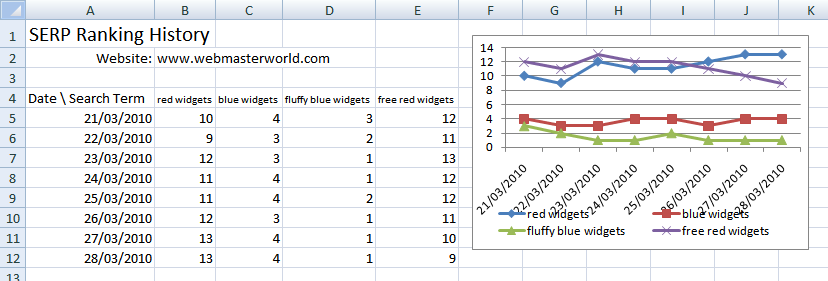
serp-sheet
  1. If you want to use this spreadsheet, first download it from here and open it up in Excel.
  2. Write your website's host name in cell B2.
  3. Enter your search terms in cells B4, C4, D4, and so on (as many as you like).
  4. Select the example rows 5-12 and press Del to clear the contents (If you use the “right-click, delete” approach the chart will become smaller, so resize it back).
  5. Press Ctrl-Shift-U to refresh the results.
All being well, a new line with rankings will be added, and the graph will be updated. Just like magic! (Note: If the macro is run again during the same day, it will not do anything.)

About the Solution

For this solution we used the default-sized result pages (10 results each) and not a 100-result page, because of Google's double-listing mechanism that puts results from the same site together. Your competitors who appear above you in the SERPs might get a double-listing in a larger page, and thus skew the rankings. We want to get the rankings as they are seen by real searchers.
The HTTP User agent is IE7. This is done because the default WinHTTP user agent string is blocked by Google. They really don't want bots to use their service, and rightfully so. This is also a good point to say, use this at your own risk, heh.
We used a configurable parameter, GOOGLE_WEBSERVER so you can choose which Google server to fetch the data from. This is useful if you are tracking rankings from a different region than your potential customers. For example, I am based in the UK but a lot of my customers are in the USA, so I need to see results from outside of my own data center. You can use a localized server like www.google.co.uk, or the Google Caffeine test server or any other specific one by IP.
Finally, to keep things fast and simple, the macro only looks at the first 3 result pages. This is an artificial limit that can be lifted by changing the call to GetCurrentRanking. We placed this limit to shorten the possible time it takes to run the macro. If your website is not found in the results, 0 will be displayed.

How it Works

If you look at the macro code, there is a fair amount going on under the hood, but it is fairly straight forward.
Essentially what we are doing here is “scraping” the search result then looking within the returned content for specific strings (our links). This approach can be used for a lot of useful purposes so it is worth investigating.
serp-macro

The Macro Code

The main macro subroutine AddCurrentRankingsRow first retrieves the website URL, and locates the data in the sheet. Then it adds a new line for today's date, and works on the term columns:
term = sheet.UsedRange.Cells(4, col).Text
rank = GetCurrentRanking(term, myurl, 3)
sheet.Cells(newRow, col).Formula = rank
For each term column, the subroutine fetches the term itself, then looks at the SERPs (Search Engine Result Pages) to find the rankings of our website, and finally writes it to the respective cell. The subroutine GetCurrentRanking figures out the ranking by iterating the SERPs as long as our website does not appear in the results. When our website appears in the results, it calculates and returns the ranking:
While pagenum < maxpages
    pagenum = pagenum + 1
    url = BuildSERPURL(term, start)
    page = FetchPage(url)
    If FindRank(page, myurl, count) Then
        GetCurrentRanking = start + count
        Exit Function
    End If
    start = start + count
Wend
GetCurrentRanking uses three handy but simple utility functions:
  • BuildSERPURL - This generates the URL of a SERP for a specific term, starting at a certain result number.
  • FetchPage - Uses Microsoft's WinHttp library to do a HTTP ‘GET’ request and fetch the SERP's HTML contents.
  • FindRank - Finds the position of our website in the organic results in a page.
FindRank is specific to Google results. It disregards the paid advertisements and counts result links. The organic result links are in the form …

...

… so the function just extracts the URL from those links. This function can be easily adapted to other search engines like Bing or Ask.com, but it will require some programming tweaks to work.

How to Run the Macro Automatically

You may want to run the macro automatically, without the need to press Ctrl-Shift-U. In order to do so, add the following subroutine after all the code:
Private Sub Workbook_Open()
    AddCurrentRankingsRow
End Sub
This will run the macro every time you open the file, which means you will always see the most updated data.

Summary

This project serves as a good example for how you can use Excel to “scrape” search results and monitor your rankings.
I am sure you can think of other ways this could be used, perhaps as part of your link building or reputation management efforts?
Please share your thoughts and ideas in the comments …

P.S.

  • I've updated the article with slight changes that are required for Google's new search results page.
  • The file is now in the old XLS format instead of XLSX.
  • URL Encoding is done by WinHTTP now.